Classroom File Sharing with Direct Links
Teachers and students can use direct downloads to cut friction on Google Classroom, Canvas, and Moodle. Deliver worksheets, slides, and videos in one tap.
Why direct links help in class
Students on school Wi-Fi or low-end devices struggle with multiple clicks and preview pages. Direct links drop the file right onto their device. Less confusion, fewer “it won’t open” messages.
Post clear download buttons so students know exactly what to tap.
Set up sharing correctly
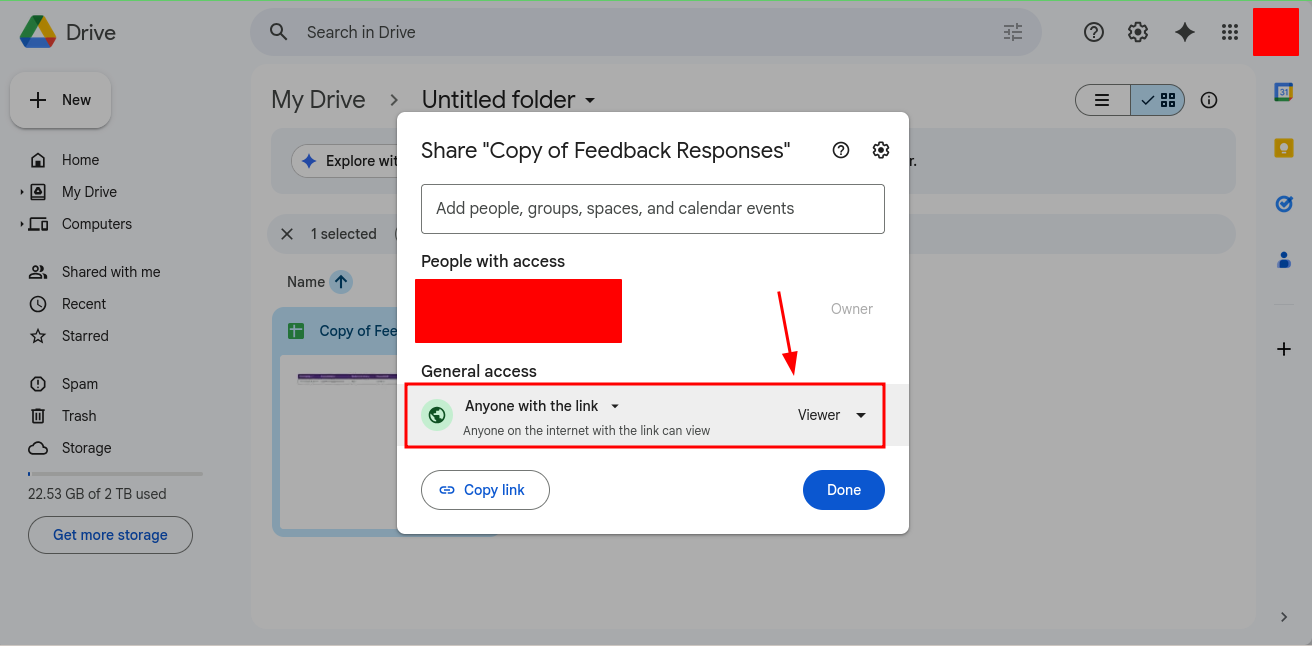
- Google Drive: Set file to Anyone with link. Avoid view-only preview when you want a quick download.
- OneDrive: Use Anyone with link and avoid sign-in requirements for public class materials.
- Dropbox: Share link is fine; convert to a direct link so it starts downloading immediately.
Convert links in DriveDirect Gen
- Paste the share URL into DriveDirect Gen.
- Click Generate Direct Link.
- Copy the direct URL. For multiple files, use bulk mode and copy all.
How to post in Google Classroom
- Create a new Material post.
- Add the direct link in the link field.
- Write a short instruction: “Tap to download the worksheet. Opens offline.”
- Optionally add a mirror link from Dropbox if your class has heavy traffic.
How to post in Canvas
- In a Page or Module, add a text block.
- Select text like “Download slides (PDF)” and hyperlink it with the direct URL.
- Test using Student View to be sure the download starts immediately.
How to post in Moodle
- Turn editing on and add a URL resource.
- Paste the direct link, set the name, and enable “Force download” if available.
- Place it near the week’s materials so students do not miss it.
Best practices for teachers
- Name files clearly: Unit-3-Lab-Instructions.pdf.
- Include size and type: “PDF · 1.8 MB” to set expectations for mobile data.
- Add a mirror for big classes or public events; label it “If Drive is slow, use mirror.”
- Post before class so students can preload on Wi-Fi.
Best practices for students
- Download on Wi-Fi when possible, then open offline during class.
- Keep a folder per subject; store downloaded files so you do not rely on spotty networks.
- If a link fails, try the mirror or message the teacher with the exact error.
Handling videos
Videos can be large. Provide a compressed version for mobile and a high-quality version as a mirror. Consider posting a transcript for accessibility.
Security and privacy
Do not publish sensitive student data with public direct links. For private materials, restrict to domain users and share within a closed LMS instead of the open web.
Takeaway
Direct links make classroom downloads smoother. Convert with DriveDirect Gen, post them in your LMS, and give students an optional mirror for busy days. Less waiting, more learning.
Related guides
- Embed download buttons so students see a clear CTA in your posts.
- Convert many class links at once before posting weekly materials.
- Add QR codes for handouts so students can scan slides or posters.
- Build a Google Drive direct link if you need to craft one manually.