How to Create a Google Drive Direct Download Link
A complete step-by-step guide with 3 methods — from manual URL editing to using our free generator tool.
Why You Need a Direct Download Link
When you share a file using Google Drive's "Share" feature, the recipient gets a link that opens a preview page. This page shows the file in Google's viewer and requires the user to click an additional "Download" button to actually get the file.
This is problematic for many use cases:
- Embedding in applications: If your app needs to programmatically download a file, the preview page breaks the workflow.
- Sharing with non-tech users: The extra download step confuses many people.
- Automated scripts: Wget, curl, and other CLI tools cannot navigate the preview page.
- Documentation: You want readers to click and instantly get the file, not navigate a Google interface.
A direct download link bypasses the preview entirely and starts the file download immediately when the URL is visited.
Method 1: Using DriveDirect Gen (Easiest)
The simplest method is to use our free DriveDirect Gen tool:
- Open Google Drive and find the file you want to share.
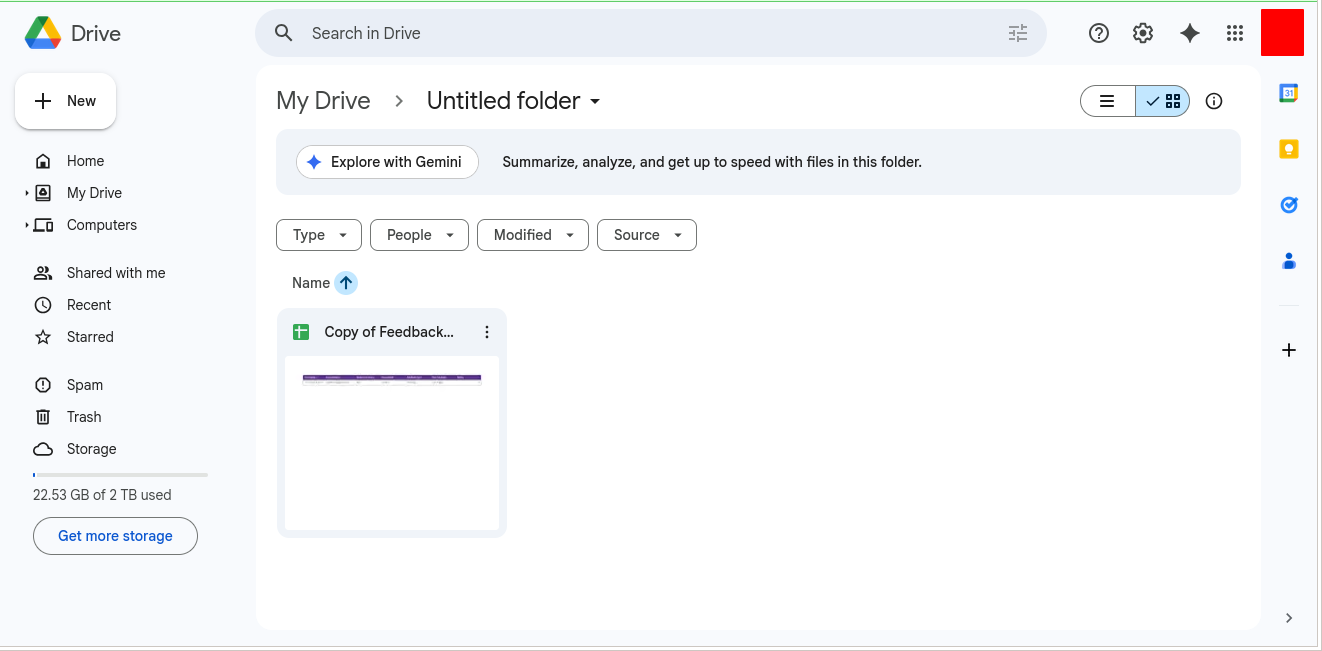
Step 1: Locate your file in Google Drive
- Right-click the file → Click "Share" to open sharing options.
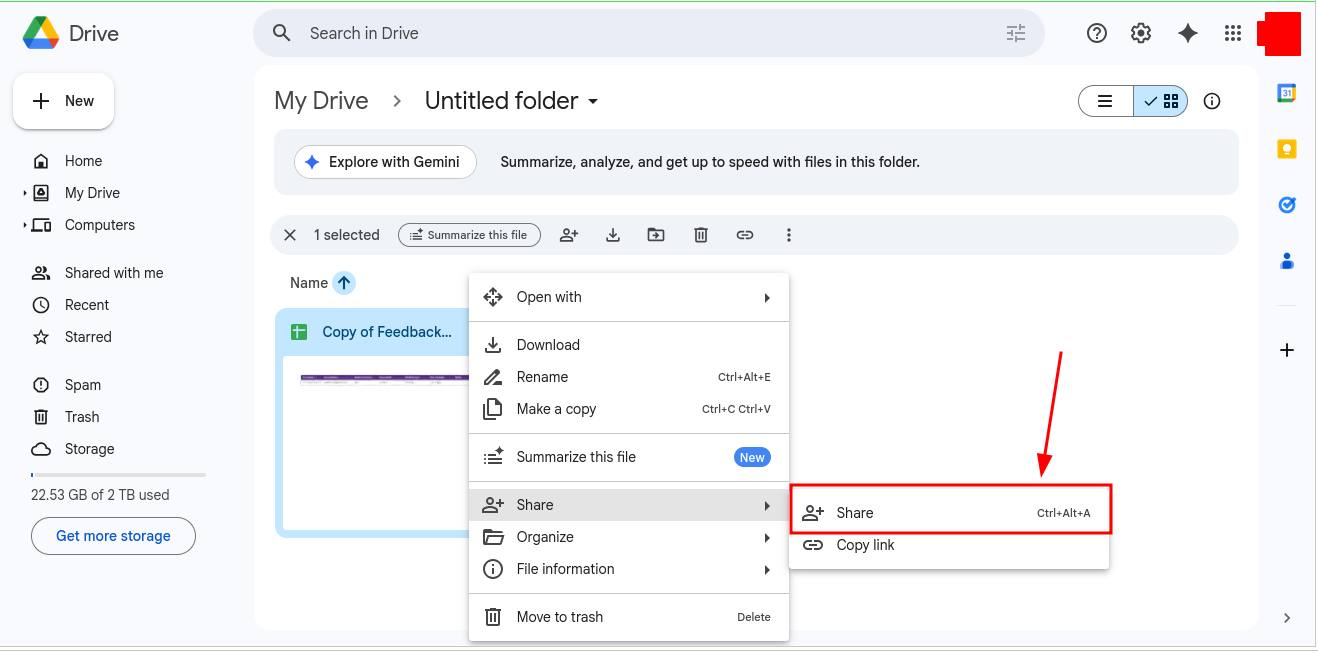
Step 2: Right-click and select Share → Copy link
- In the sharing dialog, change General access from "Restricted" to "Anyone with the link".
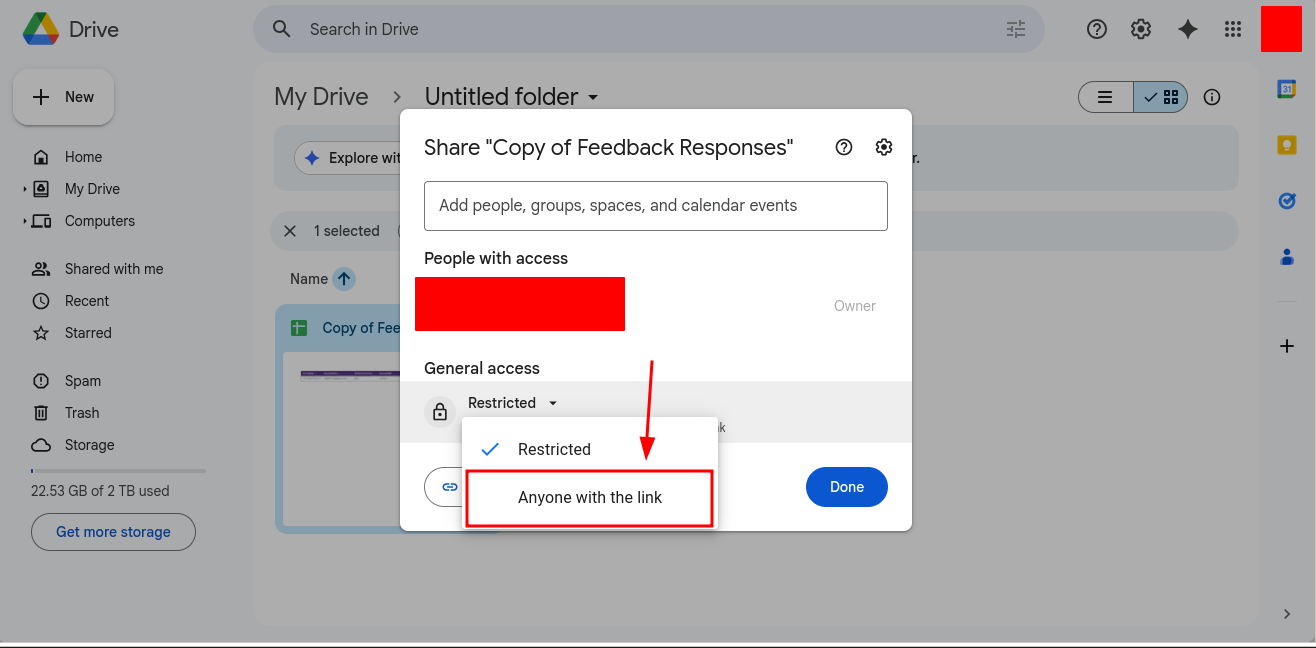
Step 3: Change access to "Anyone with the link"
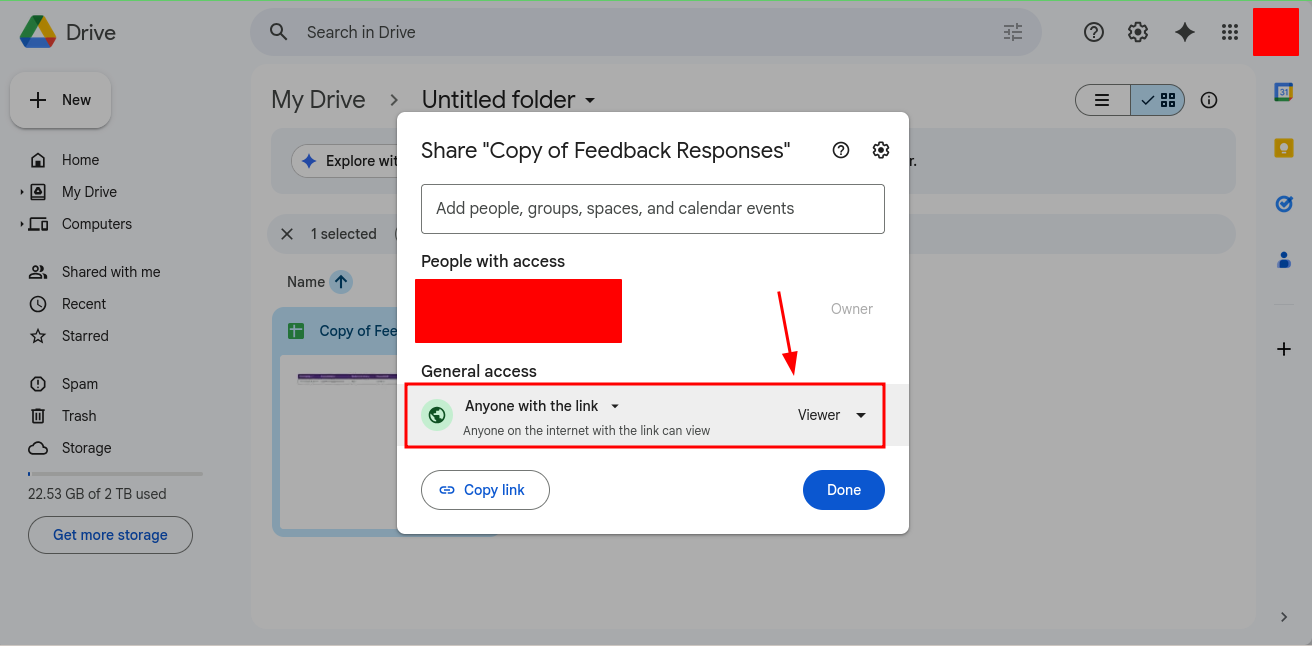
Step 3b: Access is now set to "Anyone with the link" as Viewer
- Click "Copy link" to copy the share URL.
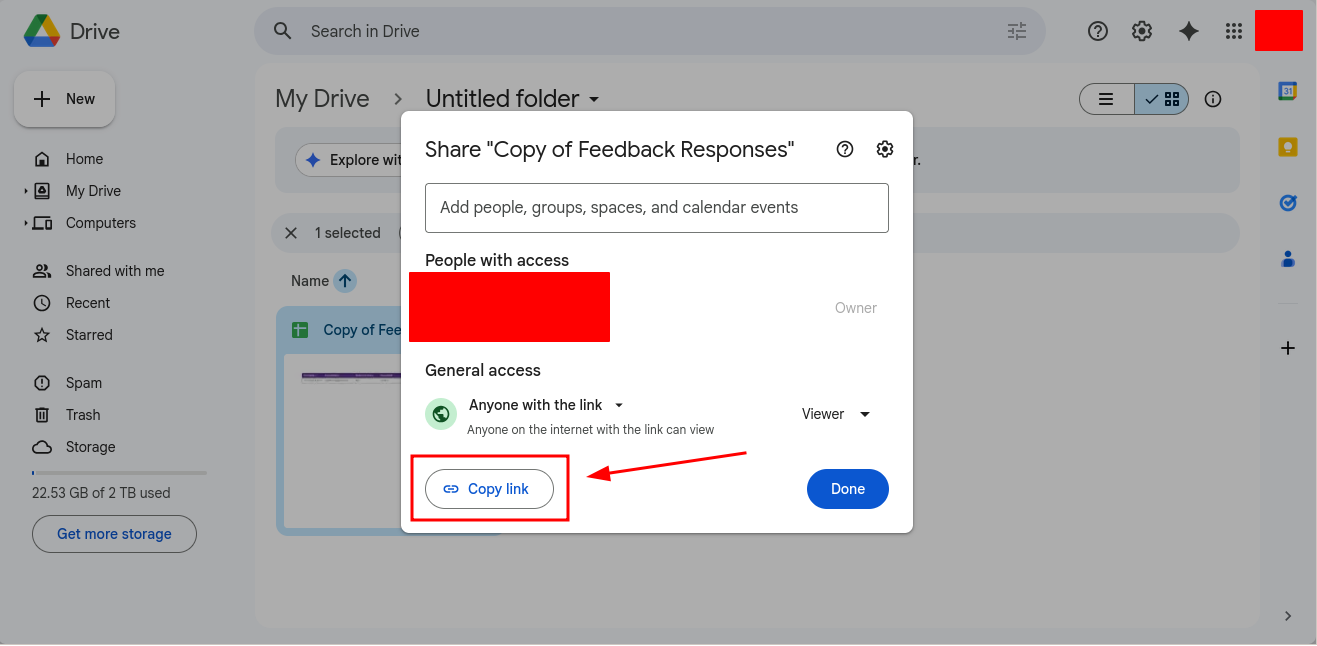
Step 4: Click "Copy link" to copy the sharing URL
- Go to DriveDirect Gen and paste your link in the input field.
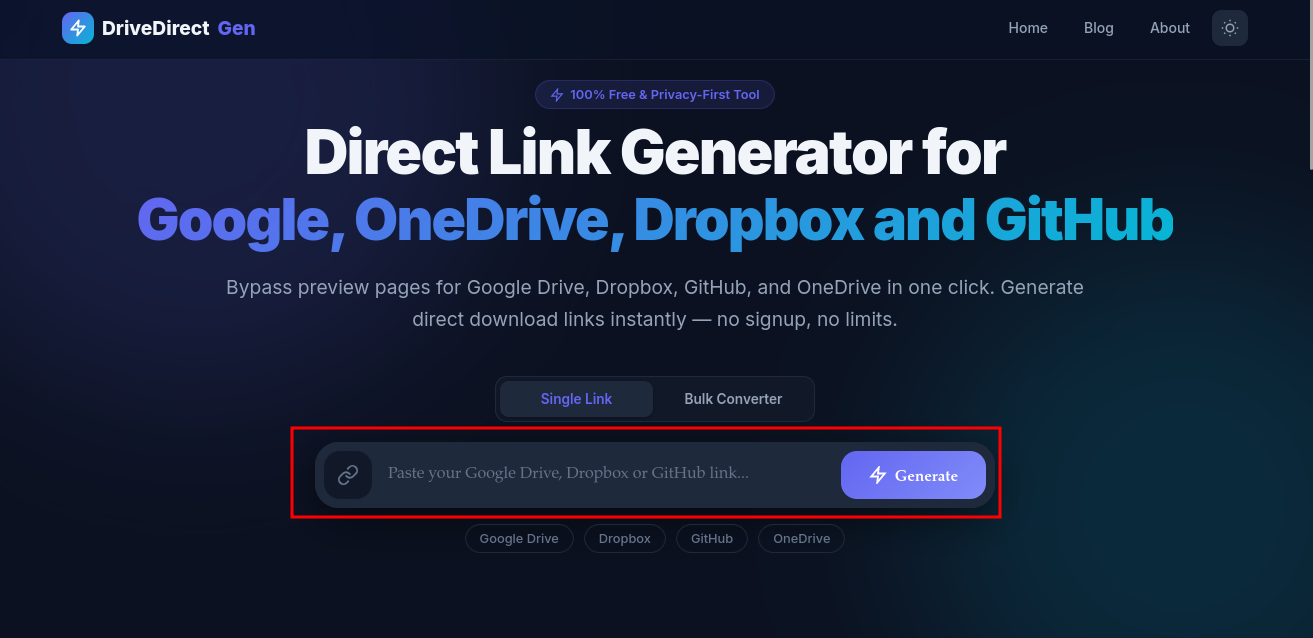
Step 5: Paste your Google Drive link into DriveDirect Gen
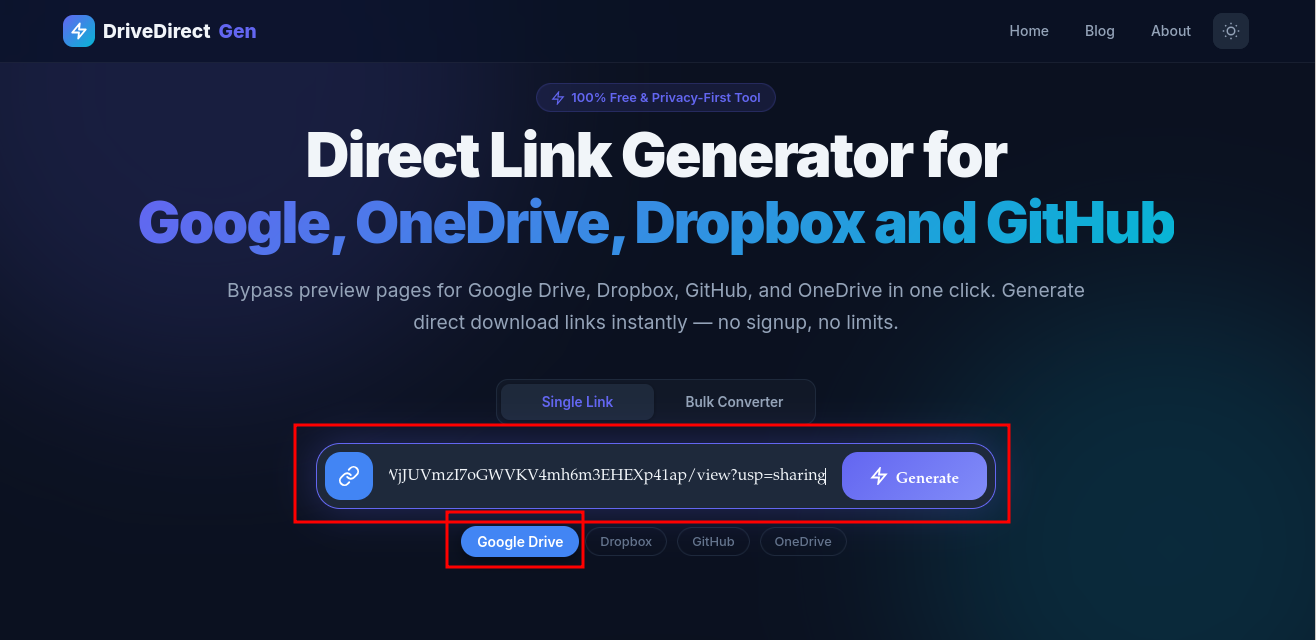
The tool auto-detects the platform — notice "Google Drive" is highlighted
- Click "Generate" — your direct download link is ready instantly!
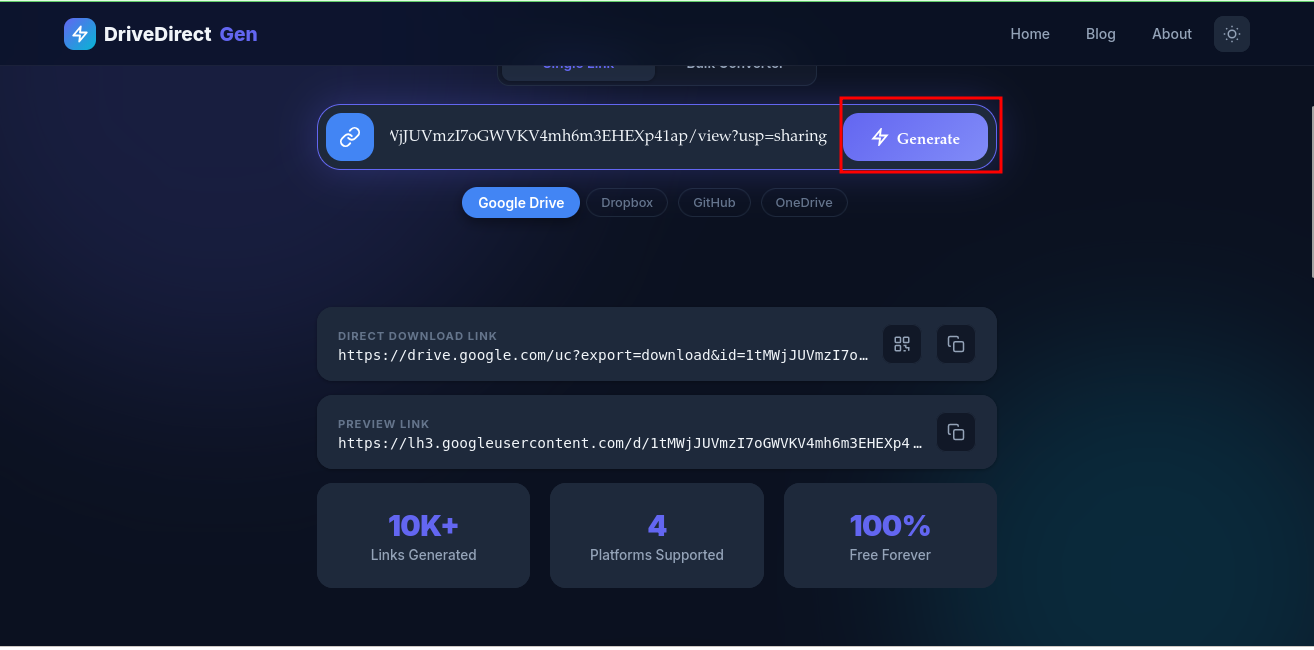
Step 6: Click the Generate button
- Copy the generated direct download link and use it anywhere.
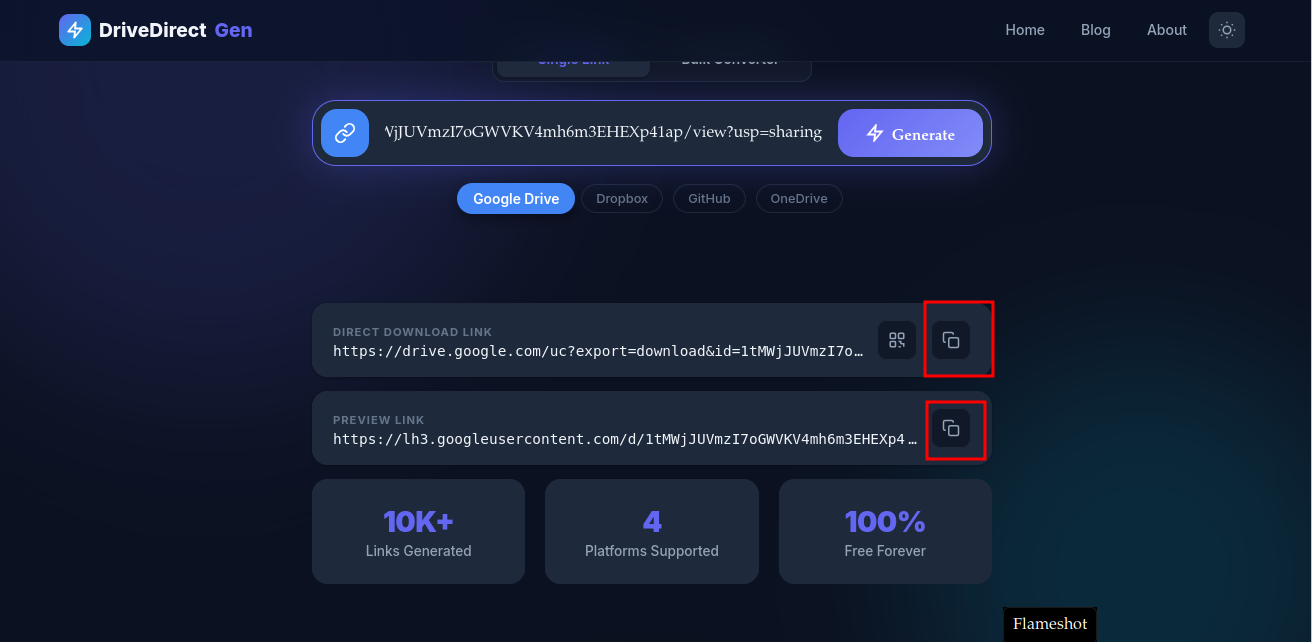
Step 7: Copy your direct download link or preview link
Bonus: You can also generate a QR code for the direct link — click the QR icon next to the copy button!
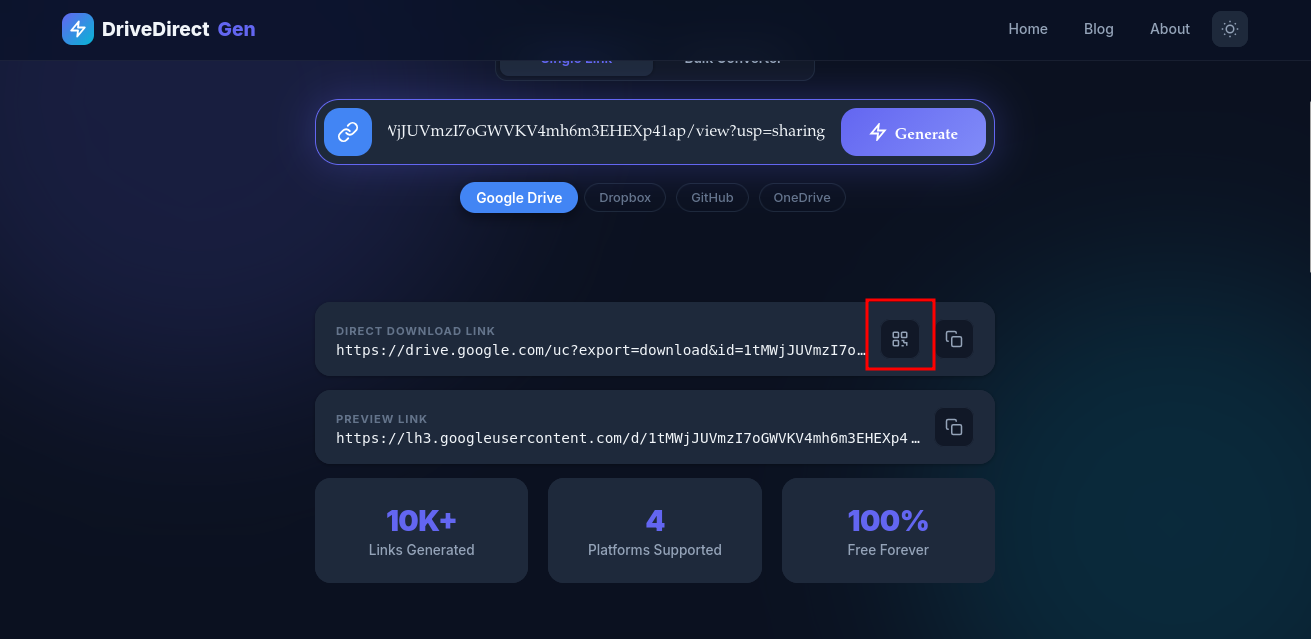
Click the QR code button to generate a scannable code
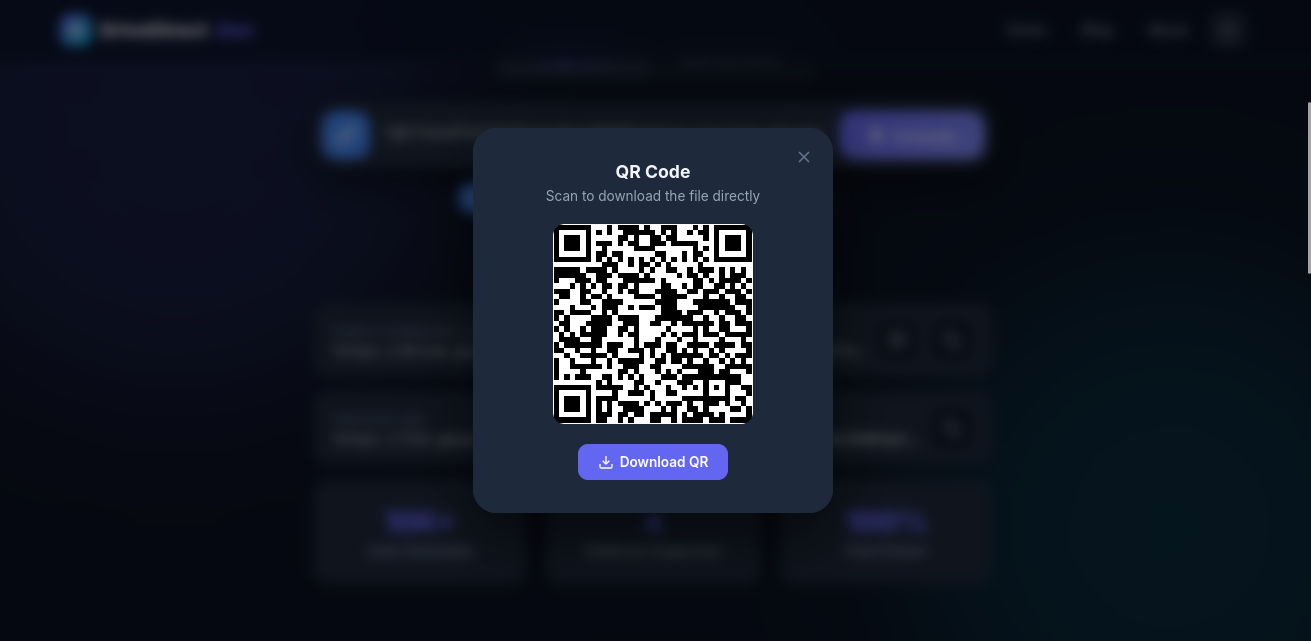
Scan the QR code or download it for easy mobile sharing
This method works instantly, requires no technical knowledge, and handles all the URL parsing automatically. Plus, everything happens in your browser — your link is never sent to any server.
Method 2: Manual URL Editing
If you prefer to do it manually, here's how:
Step 1: Get the File ID
Your Google Drive share link looks like this:
https://drive.google.com/file/d/FILE_ID/view?usp=sharing
The FILE_ID is the long string of characters between /d/ and /view.
Step 2: Construct the Direct Link
Replace the URL with this pattern:
https://drive.google.com/uc?export=download&id=FILE_ID
That's it! This URL will trigger an immediate download when visited.
Method 3: Google Drive API
For developers building applications that need to programmatically generate direct links, you can use the Google Drive API v3:
GET https://www.googleapis.com/drive/v3/files/{fileId}?alt=media
This requires OAuth 2.0 authentication and is best suited for server-side applications that need to download files on behalf of users.
Important Notes
- The file must be shared as "Anyone with the link" for the direct link to work.
- Large files (over 100MB) may show a virus scan warning. The direct link will still work, but Google may add an intermediate confirmation page.
- Google may change their URL patterns in the future, which could break manually constructed links. Using DriveDirect Gen ensures you always get the correct format.
Conclusion
Creating a Google Drive direct download link is easy with the right approach. For quick, one-off conversions, DriveDirect Gen is the fastest option. For bulk operations or automation, the manual method or Google Drive API might be more suitable.
Try our free direct link generator now — it works with Google Drive, Dropbox, GitHub, and OneDrive!